



This feature is only available for Windows clients and SiteKiosk Online version 1 or later.
In this example, the empty template in SiteKiosk Online is used, to which an image element has been added that will be used to launch the UWP app.
1. Determine the required information for the UWP app
To find the information required to launch the UWP app, type “Run” into the Windows search and open the corresponding app.
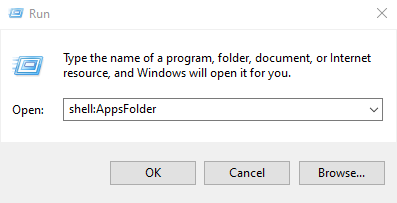
Then, in the “Open” field, enter the command shell:AppsFolder and click “OK”.
Now locate the desired app, right-click it, and select “Create shortcut”.
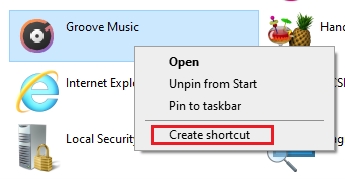
When prompted, place the shortcut on the desktop.
To determine the package name, right-click the desktop shortcut and select “Properties”.
Open the “Shortcut” tab there.
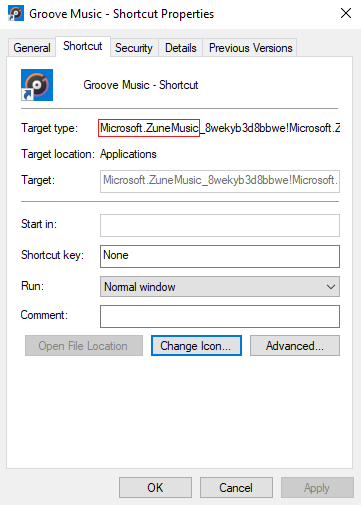
In the “Target type” or “Target” fields, you will find the package name or the package family name. The package or program name is the text before the underscore.
In this example, the Groove Music app is to be used. For this, we need the following part from the “Target type” field: “Microsoft.ZuneMusic”
2. Configure the UWP app in SiteKiosk Online
Open the properties of the image element in SiteKiosk Online and switch to the “Actions” section.
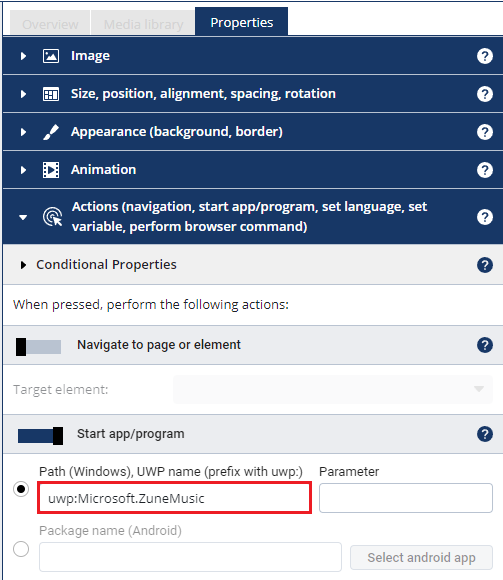
Enable “Start app/program” there and enter the package name in the following format: uwp:Microsoft.ZuneMusic
Save the setting and publish the project on a Windows client to test launching the UWP app.